> ## Documentation Index
> Fetch the complete documentation index at: https://docs.hairoute.ai/llms.txt
> Use this file to discover all available pages before exploring further.
# Claude Code
> Connect Claude Code to HaiRoute through CC Switch or direct CLI configuration
Claude Code can connect to HaiRoute in two ways: configure it through **CC Switch**, or configure the **Claude Code CLI directly** with environment variables. Both methods use HaiRoute's Anthropic Messages protocol.
| Method | Recommended when |
| ---------------------------- | --------------------------------------------------------------------------------------------------------------------------------------------------------------- |
| **CC Switch** | You prefer a visual configuration flow, need to manage providers or model mappings in one place, or do not want to set terminal environment variables manually. |
| **Direct CLI configuration** | You prefer a lightweight terminal-only setup, use scripts or CI, or want to manage the configuration in your shell profile. |
## Protocol and endpoint
Claude Code uses the Anthropic Messages protocol. In CC Switch, select **Anthropic Messages (Native)** and set the endpoint to `https://api.hairoute.ai`. CC Switch then sends requests to HaiRoute's `POST /v1/messages` endpoint.
Enter only `https://api.hairoute.ai` in the API Endpoint field. Do not append `/v1` or `/v1/messages`.
## What you need
* Claude Code installed
* A HaiRoute API key
* At least one model ID available to your API key
* CC Switch installed if you use the CC Switch method
## Method 1: Configure through CC Switch (recommended)
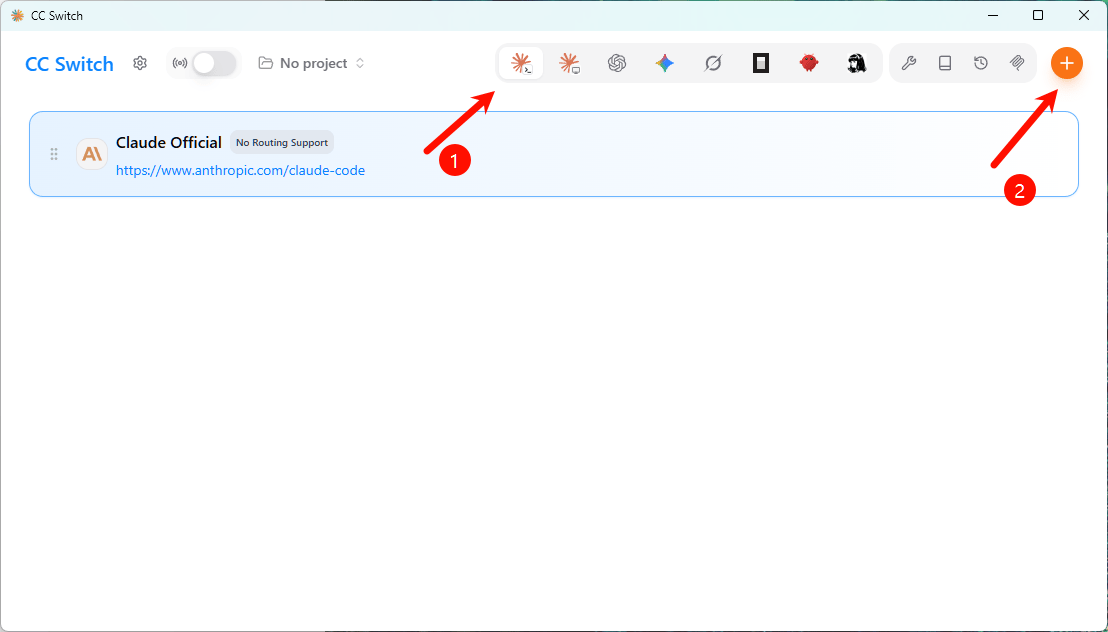
### Step 1: Select Claude Code and add a provider
Open CC Switch, select the **Claude Code / Claude Official** app from the app bar, then click the **+** button in the upper-right corner to add a provider.
 ### Step 2: Choose Custom Config and enter the API key
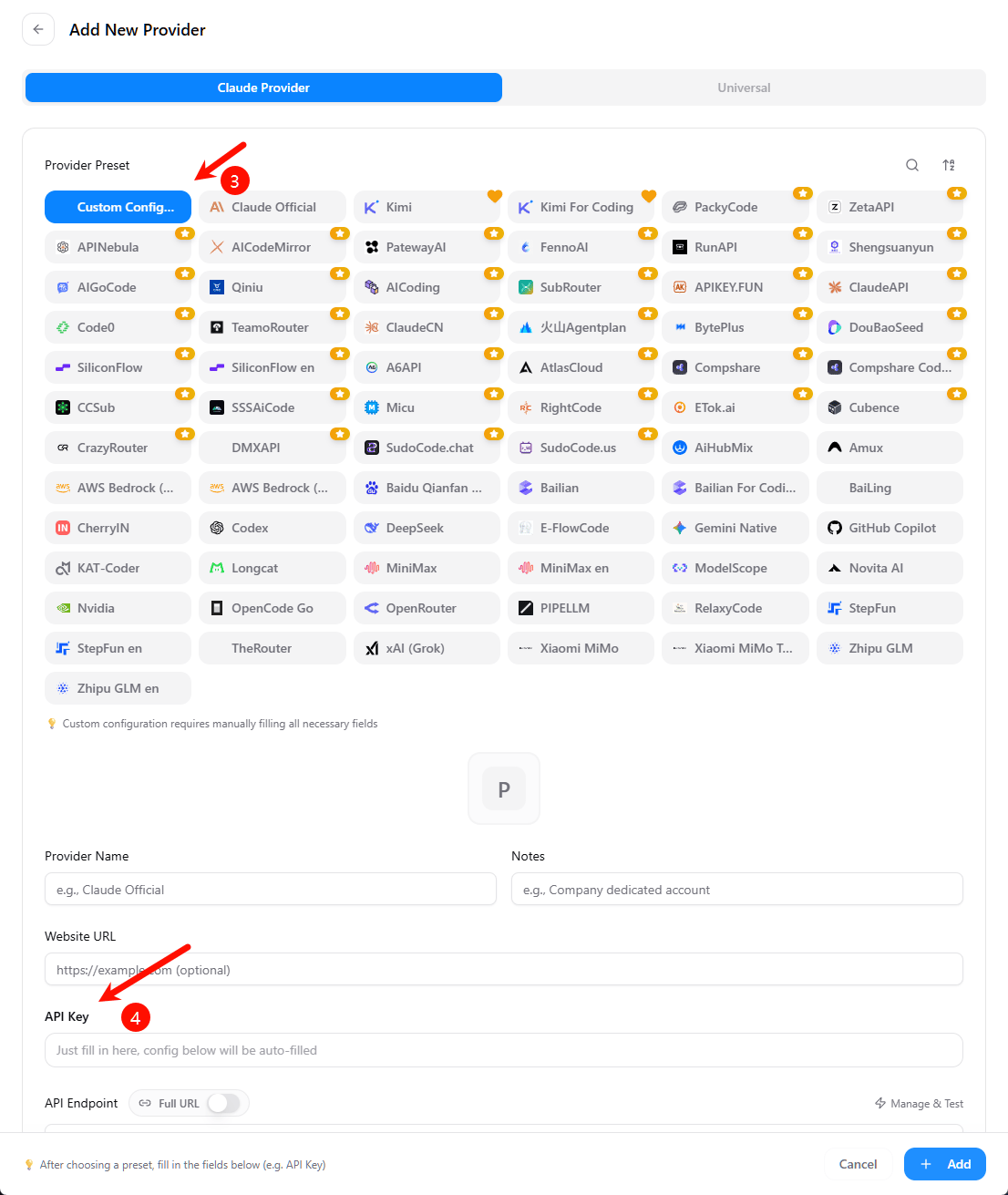
On the **Claude Provider** tab:
1. Choose **Custom Config**.
2. Optionally name the provider, for example `HaiRoute`.
3. Paste your HaiRoute API key into **API Key**.
### Step 2: Choose Custom Config and enter the API key
On the **Claude Provider** tab:
1. Choose **Custom Config**.
2. Optionally name the provider, for example `HaiRoute`.
3. Paste your HaiRoute API key into **API Key**.
 ### Step 3: Complete the provider configuration
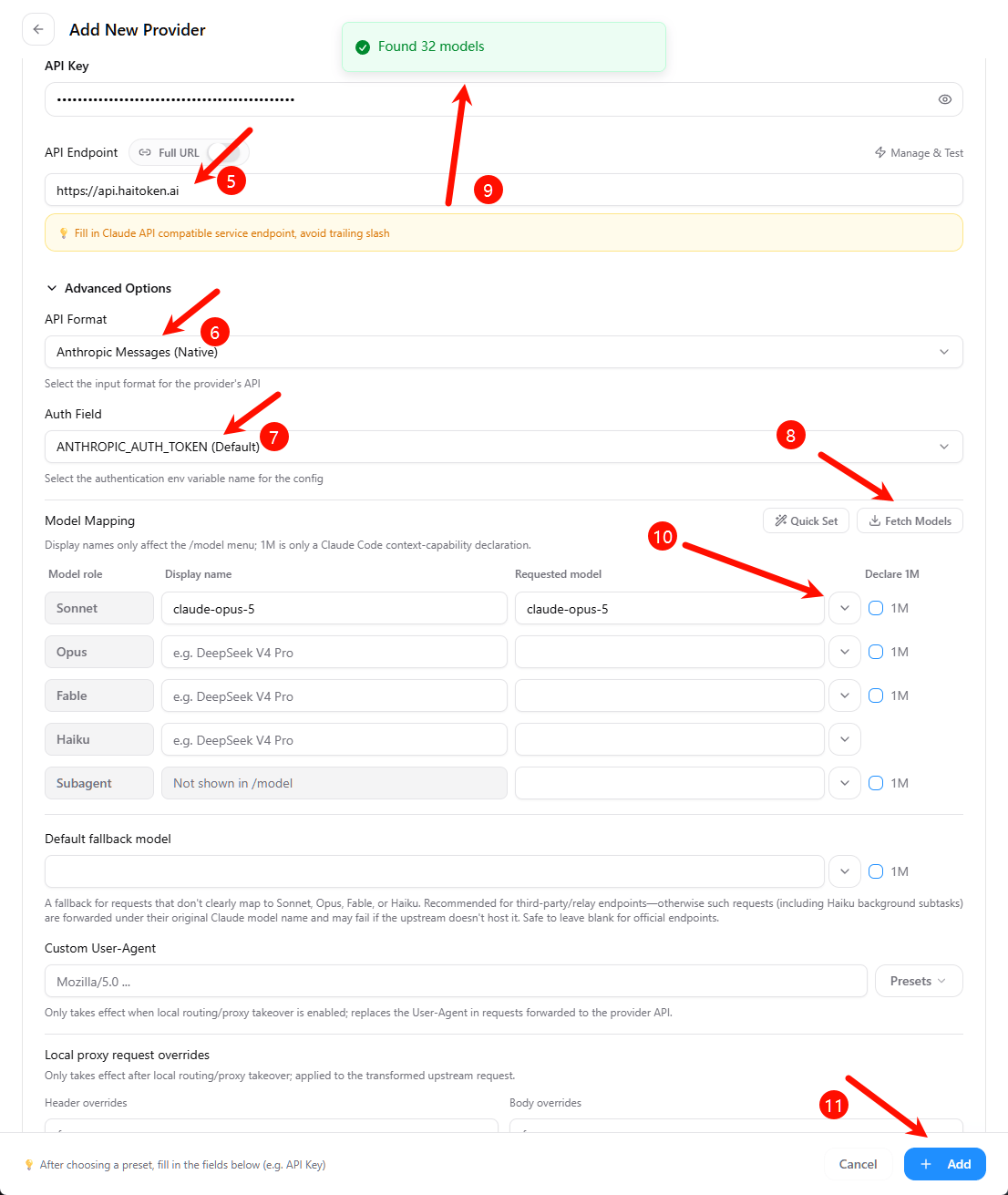
Scroll to the remaining fields and enter the following values:
| Field | Value |
| ------------ | ---------------------------------------- |
| API Endpoint | `https://api.hairoute.ai` |
| API Format | **Anthropic Messages (Native)** |
| Auth Field | Keep the default: `ANTHROPIC_AUTH_TOKEN` |
Click **Fetch Models** after entering the API key and endpoint. CC Switch should confirm that it found the models available to your key.
### Step 3: Complete the provider configuration
Scroll to the remaining fields and enter the following values:
| Field | Value |
| ------------ | ---------------------------------------- |
| API Endpoint | `https://api.hairoute.ai` |
| API Format | **Anthropic Messages (Native)** |
| Auth Field | Keep the default: `ANTHROPIC_AUTH_TOKEN` |
Click **Fetch Models** after entering the API key and endpoint. CC Switch should confirm that it found the models available to your key.
 ### Step 4: Map the Claude roles to HaiRoute models
In **Model Mapping**, choose the model to use for each Claude role that you need:
* **Sonnet** is the usual main coding model.
* **Opus**, **Haiku**, and the other roles are optional.
* Use a model ID returned by HaiRoute. The requested-model value must match that model ID exactly.
The **Auth Field** is an environment-variable name used by Claude Code, not your API key. Leave `ANTHROPIC_AUTH_TOKEN` unchanged; your actual key stays in the **API Key** field.
### Step 5: Save and test
Click **Add**, make sure the new provider is active for Claude Code, then start or restart Claude Code and send a simple request such as `hello`.
If a response is returned, Claude Code is using your HaiRoute provider through CC Switch.
## Method 2: Configure the Claude Code CLI directly
Use this method when you want to connect Claude Code without CC Switch. Set the variables in the terminal from which you launch Claude Code.
### Step 1: Set the API key, endpoint, and default model
Windows PowerShell:
```powershell theme={null}
$env:ANTHROPIC_AUTH_TOKEN = "YOUR_API_KEY"
$env:ANTHROPIC_BASE_URL = "https://api.hairoute.ai"
$env:ANTHROPIC_MODEL = "claude-sonnet-4-0"
claude
```
macOS / Linux:
```bash theme={null}
export ANTHROPIC_AUTH_TOKEN="YOUR_API_KEY"
export ANTHROPIC_BASE_URL="https://api.hairoute.ai"
export ANTHROPIC_MODEL="claude-sonnet-4-0"
claude
```
Replace `claude-sonnet-4-0` with an actual model ID available to your API key. Do not append `/v1` or `/v1/messages` to `ANTHROPIC_BASE_URL`.
### Step 2: Choose or switch the model
You can set a default with `ANTHROPIC_MODEL`, start one session with a specific model, or switch while Claude Code is running:
```bash theme={null}
claude --model claude-sonnet-4-0
```
Inside Claude Code, use:
```text theme={null}
/model
```
The in-session `/model` command takes effect immediately. The `--model` flag applies only to that launch and overrides `ANTHROPIC_MODEL` for the session.
### Step 3: Persist the configuration if needed
The commands above apply only to the current terminal session. To reuse the setup, add the same environment variables to your PowerShell profile on Windows, `~/.zshrc` on macOS or zsh-based Linux shells, or `~/.bashrc` on bash-based Linux shells. Open a new terminal after saving the profile, then run `claude`.
### Step 4: Verify the direct CLI connection
Start Claude Code from the terminal where the variables are set and send a simple request such as `hello`. A normal response confirms that Claude Code is using HaiRoute.
## Verification checklist
1. CC Switch shows the provider as active for Claude Code.
2. **Fetch Models** succeeds and returns models available to your API key.
3. The API Endpoint is `https://api.hairoute.ai` without a trailing slash or path.
4. API Format is **Anthropic Messages (Native)**.
5. Claude Code returns a normal response after it is restarted.
## FAQ
| Question | Solution |
| ---------------------------------------------------------------------- | ------------------------------------------------------------------------------------------------------------------- |
| Fetching models returns `404` | Check that the API Endpoint is exactly `https://api.hairoute.ai`; do not add `/v1` or `/v1/messages`. |
| Claude Code reports an authentication error | Confirm the HaiRoute API key is in the **API Key** field and the **Auth Field** remains `ANTHROPIC_AUTH_TOKEN`. |
| The provider is saved but Claude Code still uses the old configuration | Activate the new provider in CC Switch, then fully restart Claude Code. |
| A mapped model cannot be used | Fetch the model list again and make sure the requested model ID exactly matches a model available to your API key. |
| Direct CLI authentication fails | Confirm `ANTHROPIC_AUTH_TOKEN` and `ANTHROPIC_BASE_URL` are set in the same terminal from which you start `claude`. |
| A direct CLI model cannot be found | Use a model ID available to your API key, then set it with `ANTHROPIC_MODEL`, `claude --model`, or `/model`. |
## Next
* See [Get API Key](/docs/en/quickstart/get-api-key)
* See [Claude format API](/docs/en/api-reference/chat/claude-format)
* See [List models](/docs/en/api-reference/models/list-models)
### Step 4: Map the Claude roles to HaiRoute models
In **Model Mapping**, choose the model to use for each Claude role that you need:
* **Sonnet** is the usual main coding model.
* **Opus**, **Haiku**, and the other roles are optional.
* Use a model ID returned by HaiRoute. The requested-model value must match that model ID exactly.
The **Auth Field** is an environment-variable name used by Claude Code, not your API key. Leave `ANTHROPIC_AUTH_TOKEN` unchanged; your actual key stays in the **API Key** field.
### Step 5: Save and test
Click **Add**, make sure the new provider is active for Claude Code, then start or restart Claude Code and send a simple request such as `hello`.
If a response is returned, Claude Code is using your HaiRoute provider through CC Switch.
## Method 2: Configure the Claude Code CLI directly
Use this method when you want to connect Claude Code without CC Switch. Set the variables in the terminal from which you launch Claude Code.
### Step 1: Set the API key, endpoint, and default model
Windows PowerShell:
```powershell theme={null}
$env:ANTHROPIC_AUTH_TOKEN = "YOUR_API_KEY"
$env:ANTHROPIC_BASE_URL = "https://api.hairoute.ai"
$env:ANTHROPIC_MODEL = "claude-sonnet-4-0"
claude
```
macOS / Linux:
```bash theme={null}
export ANTHROPIC_AUTH_TOKEN="YOUR_API_KEY"
export ANTHROPIC_BASE_URL="https://api.hairoute.ai"
export ANTHROPIC_MODEL="claude-sonnet-4-0"
claude
```
Replace `claude-sonnet-4-0` with an actual model ID available to your API key. Do not append `/v1` or `/v1/messages` to `ANTHROPIC_BASE_URL`.
### Step 2: Choose or switch the model
You can set a default with `ANTHROPIC_MODEL`, start one session with a specific model, or switch while Claude Code is running:
```bash theme={null}
claude --model claude-sonnet-4-0
```
Inside Claude Code, use:
```text theme={null}
/model
```
The in-session `/model` command takes effect immediately. The `--model` flag applies only to that launch and overrides `ANTHROPIC_MODEL` for the session.
### Step 3: Persist the configuration if needed
The commands above apply only to the current terminal session. To reuse the setup, add the same environment variables to your PowerShell profile on Windows, `~/.zshrc` on macOS or zsh-based Linux shells, or `~/.bashrc` on bash-based Linux shells. Open a new terminal after saving the profile, then run `claude`.
### Step 4: Verify the direct CLI connection
Start Claude Code from the terminal where the variables are set and send a simple request such as `hello`. A normal response confirms that Claude Code is using HaiRoute.
## Verification checklist
1. CC Switch shows the provider as active for Claude Code.
2. **Fetch Models** succeeds and returns models available to your API key.
3. The API Endpoint is `https://api.hairoute.ai` without a trailing slash or path.
4. API Format is **Anthropic Messages (Native)**.
5. Claude Code returns a normal response after it is restarted.
## FAQ
| Question | Solution |
| ---------------------------------------------------------------------- | ------------------------------------------------------------------------------------------------------------------- |
| Fetching models returns `404` | Check that the API Endpoint is exactly `https://api.hairoute.ai`; do not add `/v1` or `/v1/messages`. |
| Claude Code reports an authentication error | Confirm the HaiRoute API key is in the **API Key** field and the **Auth Field** remains `ANTHROPIC_AUTH_TOKEN`. |
| The provider is saved but Claude Code still uses the old configuration | Activate the new provider in CC Switch, then fully restart Claude Code. |
| A mapped model cannot be used | Fetch the model list again and make sure the requested model ID exactly matches a model available to your API key. |
| Direct CLI authentication fails | Confirm `ANTHROPIC_AUTH_TOKEN` and `ANTHROPIC_BASE_URL` are set in the same terminal from which you start `claude`. |
| A direct CLI model cannot be found | Use a model ID available to your API key, then set it with `ANTHROPIC_MODEL`, `claude --model`, or `/model`. |
## Next
* See [Get API Key](/docs/en/quickstart/get-api-key)
* See [Claude format API](/docs/en/api-reference/chat/claude-format)
* See [List models](/docs/en/api-reference/models/list-models)