> ## Documentation Index
> Fetch the complete documentation index at: https://docs.hairoute.ai/llms.txt
> Use this file to discover all available pages before exploring further.
# CodeX/ChatGPT
> Connect the Codex desktop app to HaiRoute through CC Switch
You can use CC Switch to configure a HaiRoute provider for the Codex desktop app. CC Switch generates the model configuration required by Codex and forwards requests through a local routing service.
The demo in this guide uses CC Switch **V3.19.2**. If the configuration in your version differs from this guide, check which version you are using.
Connecting to HaiRoute does not require phone-number verification or other additional verification methods. You only need a HaiRoute API key to complete the setup in this guide.
## Prerequisites
* The Codex desktop app and CC Switch installed
* A HaiRoute API key
* At least one available GPT model provided by HaiRoute
## Setup steps
### Step 1: Open the Codex provider page
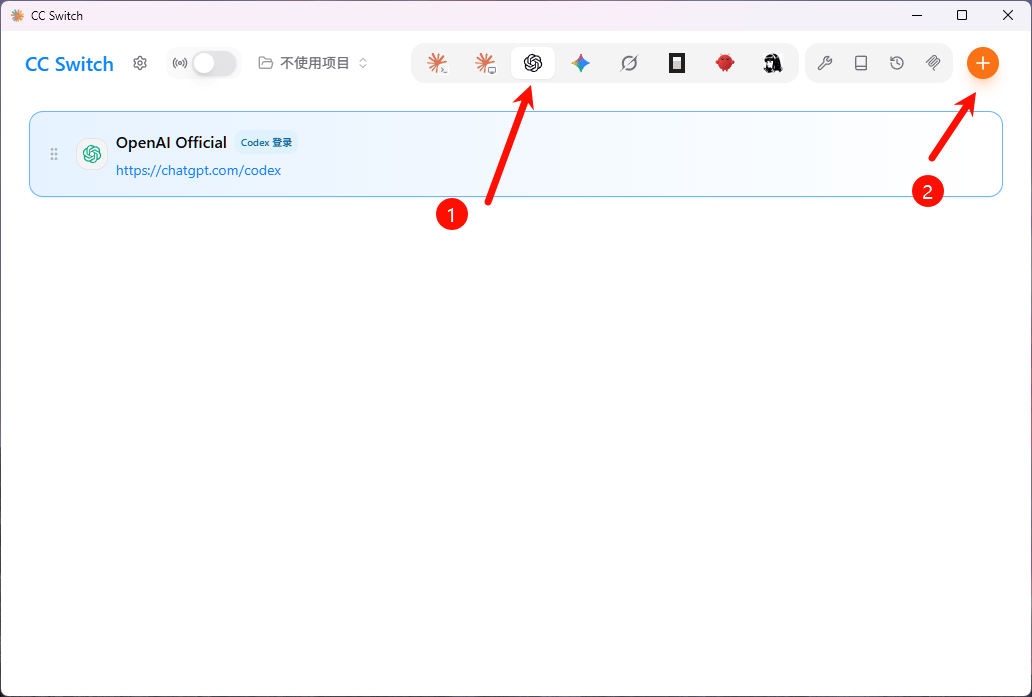
Open CC Switch, select the **Codex** icon in the top application bar, and click **+** in the top-right corner.
 ### Step 2: Create a custom provider
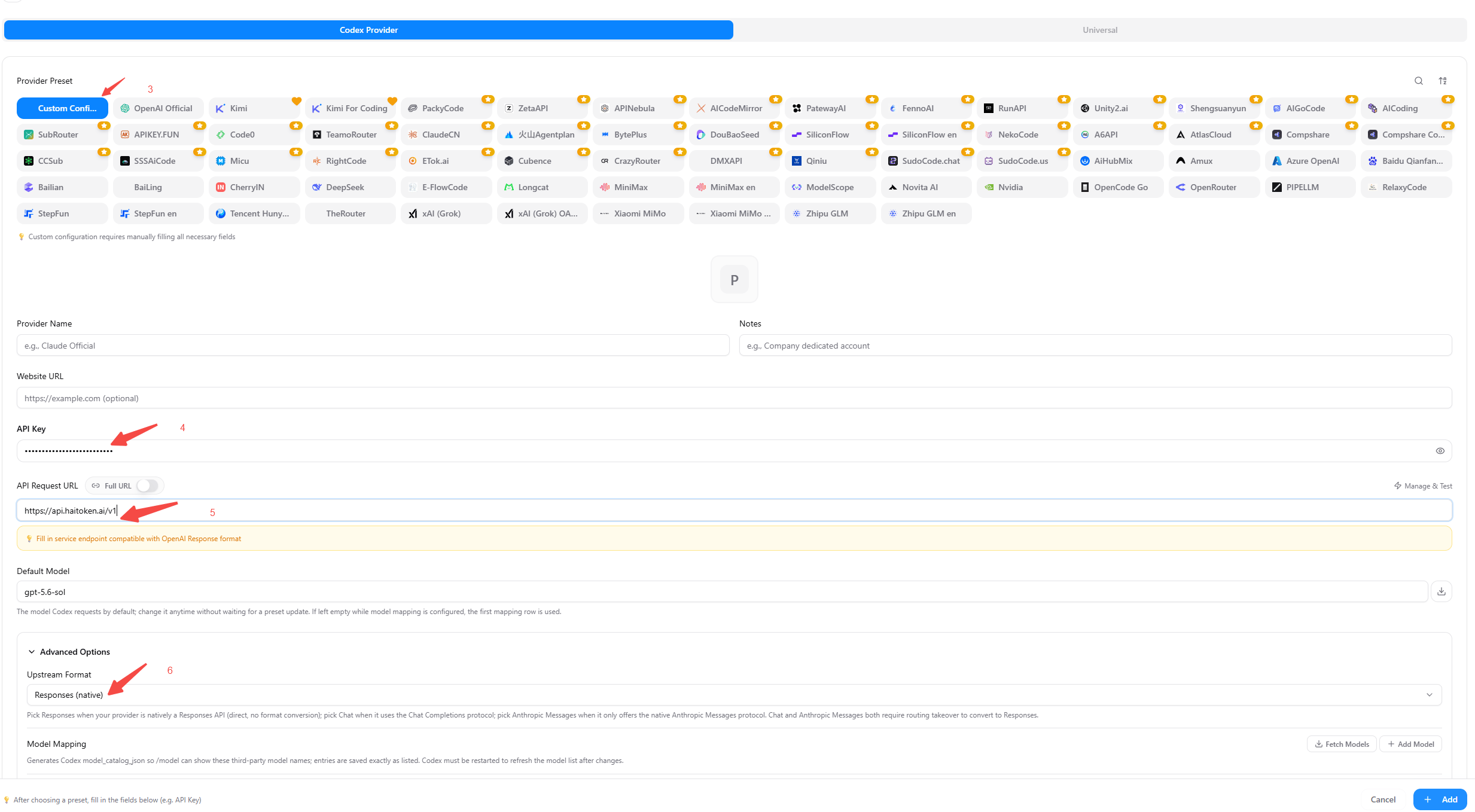
Select **Custom configuration** on the **Add new provider** page, then complete these fields:
| Field | Value |
| --------------- | ------------------------------------------------------------- |
| Provider name | `HaiRoute` or another recognizable name |
| API Key | Your HaiRoute API key |
| API request URL | Leave **Full URL** off and enter `https://api.hairoute.ai/v1` |
| Default model | Select an available GPT model provided by HaiRoute |
| Upstream format | **Responses(native)** |
### Step 2: Create a custom provider
Select **Custom configuration** on the **Add new provider** page, then complete these fields:
| Field | Value |
| --------------- | ------------------------------------------------------------- |
| Provider name | `HaiRoute` or another recognizable name |
| API Key | Your HaiRoute API key |
| API request URL | Leave **Full URL** off and enter `https://api.hairoute.ai/v1` |
| Default model | Select an available GPT model provided by HaiRoute |
| Upstream format | **Responses(native)** |
 ### Step 3: Fetch and configure models
Expand **Advanced options** and click **Fetch model list**. After CC Switch reports that it found models, click **Add model** and select the GPT model you want to use in Codex. To use more than one model, click **Add model** again and add each model separately.
After making your selections, confirm the default model and model mappings, then click **Add** in the bottom-right corner to save the provider.
### Step 3: Fetch and configure models
Expand **Advanced options** and click **Fetch model list**. After CC Switch reports that it found models, click **Add model** and select the GPT model you want to use in Codex. To use more than one model, click **Add model** again and add each model separately.
After making your selections, confirm the default model and model mappings, then click **Add** in the bottom-right corner to save the provider.
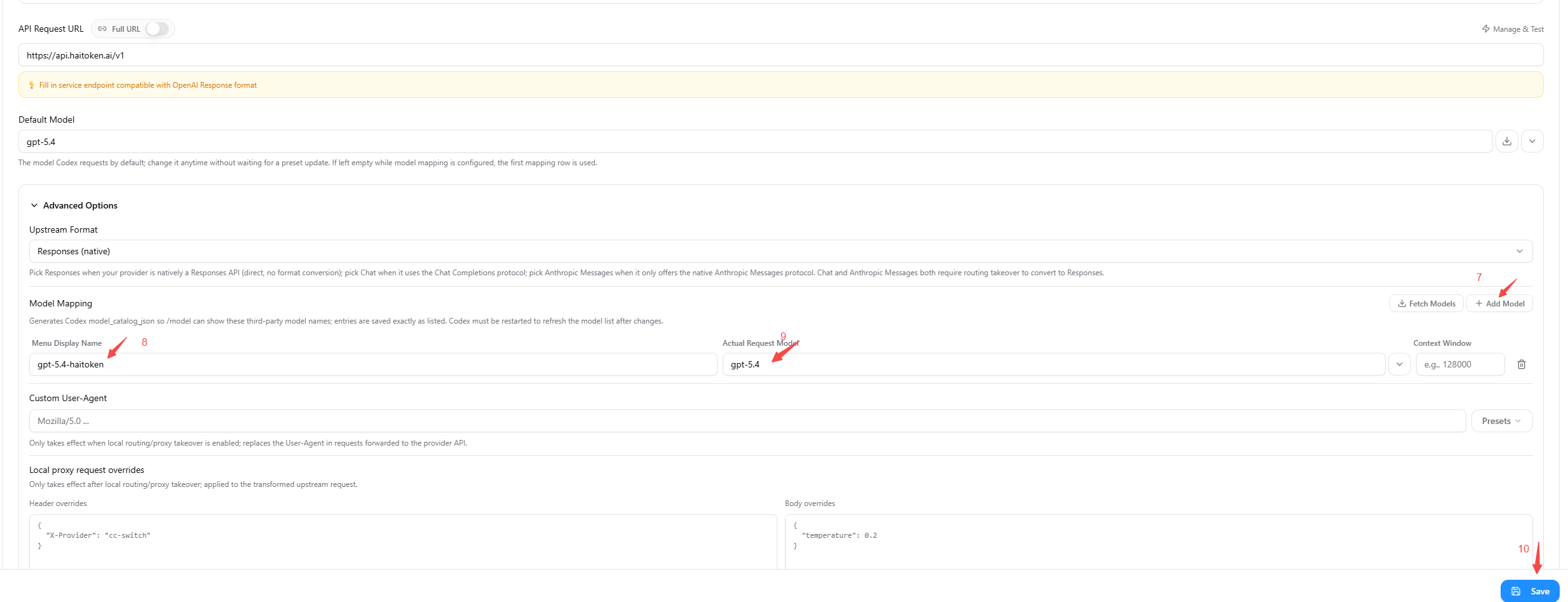 CC Switch uses the GPT models added here to generate the Codex model catalog. Codex displays the model name or its mapped name, which does not have to match the provider name.
### Step 4: Select the model in Codex
If Codex is already open, restart the Codex desktop app so it loads the new provider and model catalog. Start a new conversation, open the model selector at the bottom of the input area, and select the model you configured.
CC Switch uses the GPT models added here to generate the Codex model catalog. Codex displays the model name or its mapped name, which does not have to match the provider name.
### Step 4: Select the model in Codex
If Codex is already open, restart the Codex desktop app so it loads the new provider and model catalog. Start a new conversation, open the model selector at the bottom of the input area, and select the model you configured.
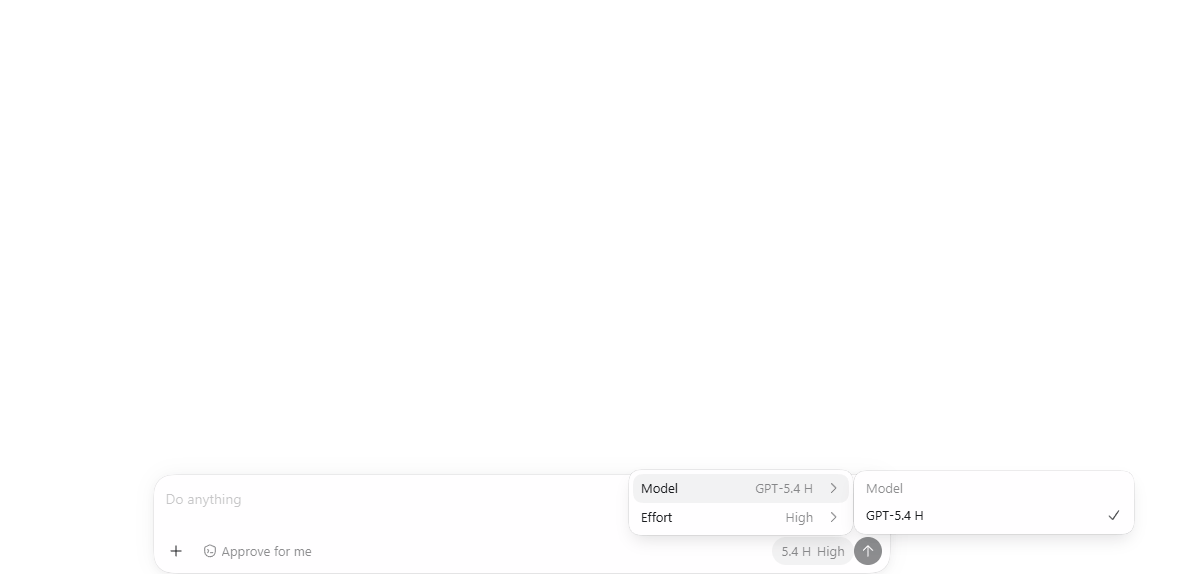 The `gpt-5.4-h` label in the screenshot is an example. The options you see depend on the default model and model mappings configured in CC Switch.
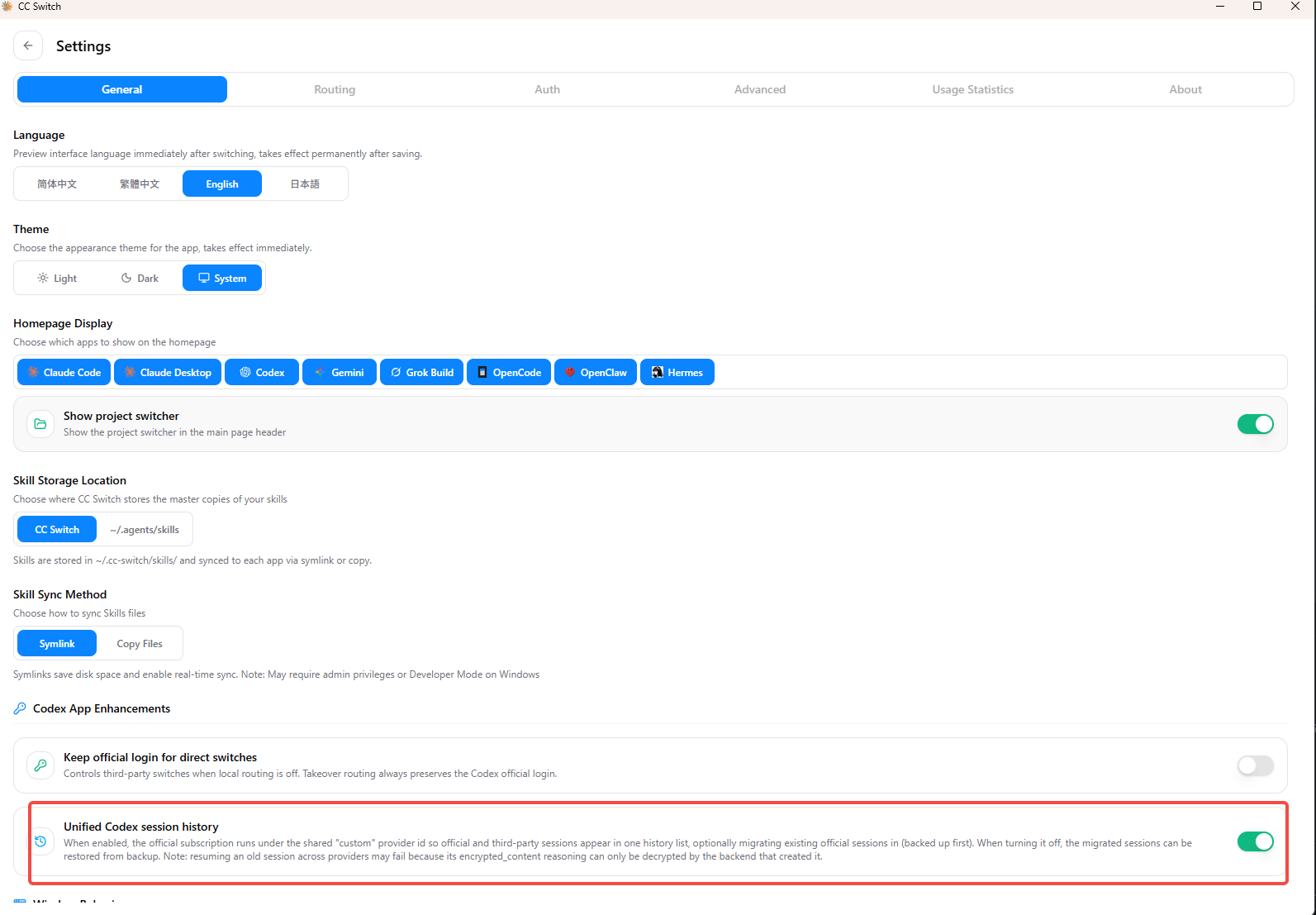
The session history will be switched if you switch between different providers. You can enable the **Unified Codex session history** option in CC Switch to preserve the session history.
The `gpt-5.4-h` label in the screenshot is an example. The options you see depend on the default model and model mappings configured in CC Switch.
The session history will be switched if you switch between different providers. You can enable the **Unified Codex session history** option in CC Switch to preserve the session history.
 ## Verify the connection
1. Select the HaiRoute model in the Codex desktop app.
2. Send a test message.
3. If Codex returns a response, the connection is working.
## Troubleshooting
| Problem | Resolution |
| ------------------------------------------------------ | --------------------------------------------------------------------------------------------------------------------------------- |
| The model list cannot be fetched | Confirm that the API request URL is `https://api.hairoute.ai/v1`, then check that the API key is valid. |
| `401` or authentication failed | Enter the HaiRoute API key again, save the provider, and restart Codex. |
| `model not found` | Make sure you added a GPT model provided by HaiRoute, then check the model IDs in the default model and model mappings. |
| The new model does not appear in Codex | Confirm that you saved the provider and enabled Codex routing, then fully quit and reopen Codex. |
| Codex requests do not go through HaiRoute | Confirm that the upstream format is **Chat Completions**, then check both the **Master routing switch** and the **Codex** switch. |
| A changed service address or port does not take effect | Restart the CC Switch routing service, then restart Codex. |
## Next steps
* See [Get an API key](/docs/en/quickstart/get-api-key)
* See [OpenAI format API](/docs/en/api-reference/chat/openai-format)
* See [List models](/docs/en/api-reference/models/list-models)
## Verify the connection
1. Select the HaiRoute model in the Codex desktop app.
2. Send a test message.
3. If Codex returns a response, the connection is working.
## Troubleshooting
| Problem | Resolution |
| ------------------------------------------------------ | --------------------------------------------------------------------------------------------------------------------------------- |
| The model list cannot be fetched | Confirm that the API request URL is `https://api.hairoute.ai/v1`, then check that the API key is valid. |
| `401` or authentication failed | Enter the HaiRoute API key again, save the provider, and restart Codex. |
| `model not found` | Make sure you added a GPT model provided by HaiRoute, then check the model IDs in the default model and model mappings. |
| The new model does not appear in Codex | Confirm that you saved the provider and enabled Codex routing, then fully quit and reopen Codex. |
| Codex requests do not go through HaiRoute | Confirm that the upstream format is **Chat Completions**, then check both the **Master routing switch** and the **Codex** switch. |
| A changed service address or port does not take effect | Restart the CC Switch routing service, then restart Codex. |
## Next steps
* See [Get an API key](/docs/en/quickstart/get-api-key)
* See [OpenAI format API](/docs/en/api-reference/chat/openai-format)
* See [List models](/docs/en/api-reference/models/list-models)