> ## Documentation Index
> Fetch the complete documentation index at: https://docs.hairoute.ai/llms.txt
> Use this file to discover all available pages before exploring further.
# Cursor
> Try HaiRoute in Cursor chat models through the OpenAI-compatible path
Cursor supports custom OpenAI-compatible API keys and Base URLs in its chat model flow. After the following steps, you can try HaiRoute models inside Cursor chat.
## Protocol Note
Cursor's custom API key path only supports the OpenAI-compatible mode; it does not support the Anthropic Messages protocol. This guide therefore only covers the OpenAI mode, with the Base URL fixed to `https://api.hairoute.ai/v1`.
This Cursor flow is mainly GUI-based, so the core steps are usually the same on Windows, macOS, and Linux. If menu placement, dialog layout, or button labels differ slightly across systems or versions, follow the current UI, but keep the same `API Key`, `Base URL`, and `Model ID` values.
## Setup Steps
1. Prepare your HaiRoute API key and confirm the target model is available in HaiRoute.
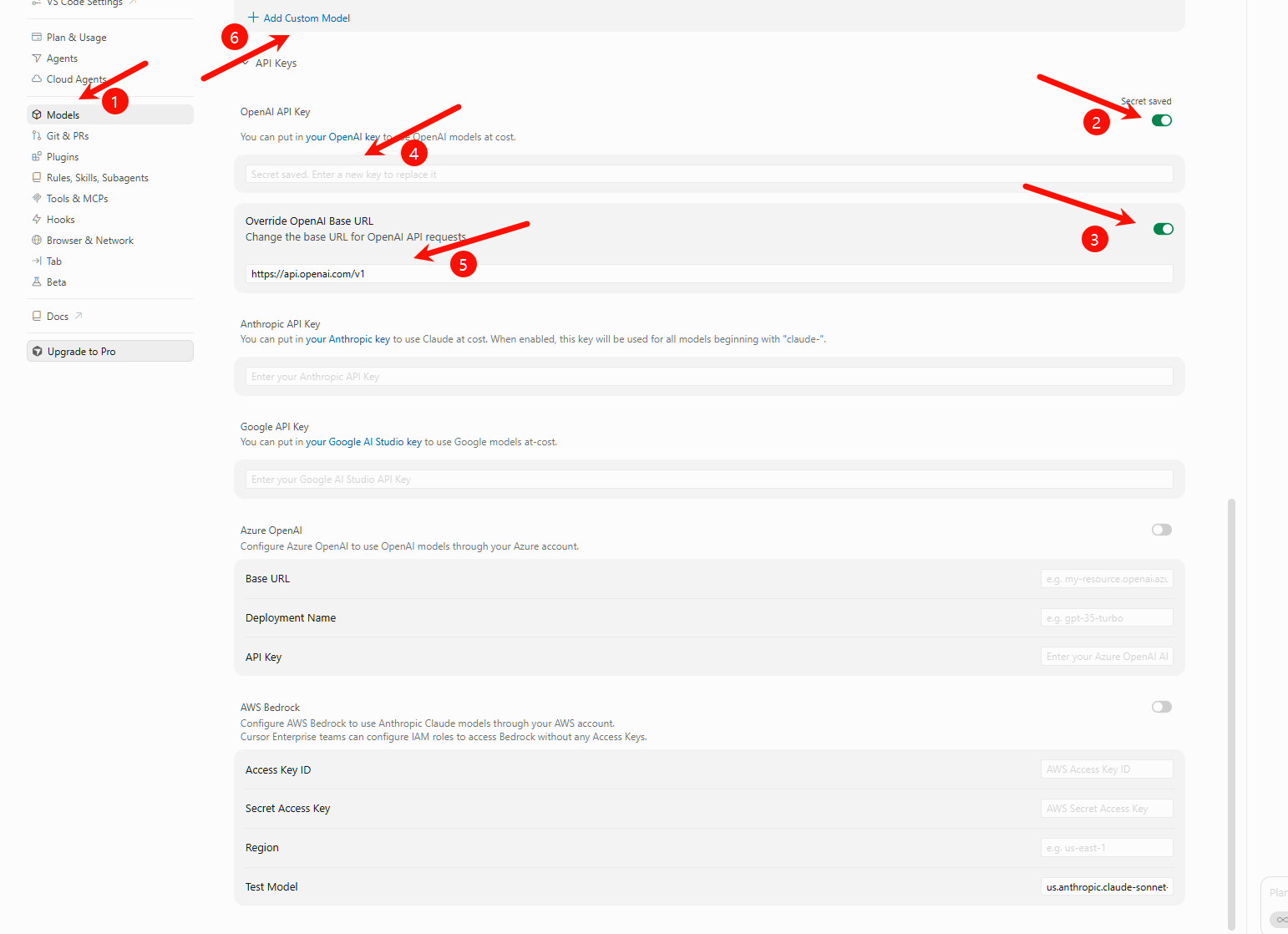
2. Open Cursor and go to **Settings** > **Cursor Settings** > **Models**.
3. Enter your HaiRoute API key in **OpenAI API Key**.
4. Enable **Override OpenAI Base URL** and enter `https://api.hairoute.ai/v1`.
5. If the model you want is already in Cursor's model list, select it directly in the chat panel or model picker. Once the Base URL is overridden, its chat requests also go through HaiRoute.
6. Only when the model is not in Cursor's list, enter its HaiRoute model ID in **Add or search model** (for example, `gpt-5.4`) and click **Add Custom Model**.
7. Save the settings and switch to the model you want to use.
 ## Verification
1. Open any project in Cursor.
2. Open the AI chat panel.
3. Select the model you want to use, either an existing Cursor model or a custom model you just added.
4. Send a simple prompt such as `Explain what this file does`.
5. If you get a normal response, the Cursor chat model path is working through HaiRoute.
## Notes
The recommended Base URL is `https://api.hairoute.ai/v1`. This means Cursor is using the OpenAI-compatible integration path rather than a single hardcoded endpoint.
Cursor's clearly documented support for custom API keys mainly applies to the chat model path. Other features such as Tab completion may still use Cursor-managed models, so do not assume that all AI features have already switched to HaiRoute.
| Field | Recommended value |
| ------------------------ | ---------------------------------------------------------------------------------------------------------------- |
| OpenAI API Key | Your HaiRoute API key |
| Override OpenAI Base URL | `https://api.hairoute.ai/v1` |
| Model ID | Only when the target model is not in Cursor's list, enter the exact HaiRoute model ID in **Add or search model** |
After the Base URL override is active, chat requests from models already in Cursor's list also go through HaiRoute. Only add a model manually in **Add or search model** when the target model is not in that list.
The value you need here is the **model ID** from the HaiRoute homepage or model list, such as `gpt-5.4`, not the display name shown to users. Copying the display name usually causes `model not found`.
## FAQ
| Question | Fix |
| ------------------------------------------------------------------------ | ----------------------------------------------------------------------------------------------------------------------------------------------------------------------------------------------------------------------------- |
| Invalid endpoint or Base URL error | Make sure the Base URL is `https://api.hairoute.ai/v1`. If `/v1` is missing, Cursor usually fails when sending OpenAI-compatible requests. |
| `401` or authentication failed | Cursor uses OpenAI-compatible Bearer authentication, so confirm the request is sent as `Authorization: Bearer YOUR_API_KEY`. |
| `model not found` | Make sure the model ID in Cursor exactly matches the model ID returned by HaiRoute. Model names are case-sensitive, and you should not add or remove prefixes. |
| `The model xxx does not work with your current plan or api key` | This usually points to your Cursor account plan or custom-model permission rather than a HaiRoute API issue. If you are on the free Cursor plan, first confirm whether custom models or BYOK are supported before continuing. |
| The configuration is saved but requests still do not go through HaiRoute | Re-select the model once and, if needed, restart Cursor before testing again so it does not keep using a cached model selection. |
## Next
* See [Get API Key](/docs/en/quickstart/get-api-key)
* See [OpenAI format API](/docs/en/api-reference/chat/openai-format)
* See [List models](/docs/en/api-reference/models/list-models)
## Verification
1. Open any project in Cursor.
2. Open the AI chat panel.
3. Select the model you want to use, either an existing Cursor model or a custom model you just added.
4. Send a simple prompt such as `Explain what this file does`.
5. If you get a normal response, the Cursor chat model path is working through HaiRoute.
## Notes
The recommended Base URL is `https://api.hairoute.ai/v1`. This means Cursor is using the OpenAI-compatible integration path rather than a single hardcoded endpoint.
Cursor's clearly documented support for custom API keys mainly applies to the chat model path. Other features such as Tab completion may still use Cursor-managed models, so do not assume that all AI features have already switched to HaiRoute.
| Field | Recommended value |
| ------------------------ | ---------------------------------------------------------------------------------------------------------------- |
| OpenAI API Key | Your HaiRoute API key |
| Override OpenAI Base URL | `https://api.hairoute.ai/v1` |
| Model ID | Only when the target model is not in Cursor's list, enter the exact HaiRoute model ID in **Add or search model** |
After the Base URL override is active, chat requests from models already in Cursor's list also go through HaiRoute. Only add a model manually in **Add or search model** when the target model is not in that list.
The value you need here is the **model ID** from the HaiRoute homepage or model list, such as `gpt-5.4`, not the display name shown to users. Copying the display name usually causes `model not found`.
## FAQ
| Question | Fix |
| ------------------------------------------------------------------------ | ----------------------------------------------------------------------------------------------------------------------------------------------------------------------------------------------------------------------------- |
| Invalid endpoint or Base URL error | Make sure the Base URL is `https://api.hairoute.ai/v1`. If `/v1` is missing, Cursor usually fails when sending OpenAI-compatible requests. |
| `401` or authentication failed | Cursor uses OpenAI-compatible Bearer authentication, so confirm the request is sent as `Authorization: Bearer YOUR_API_KEY`. |
| `model not found` | Make sure the model ID in Cursor exactly matches the model ID returned by HaiRoute. Model names are case-sensitive, and you should not add or remove prefixes. |
| `The model xxx does not work with your current plan or api key` | This usually points to your Cursor account plan or custom-model permission rather than a HaiRoute API issue. If you are on the free Cursor plan, first confirm whether custom models or BYOK are supported before continuing. |
| The configuration is saved but requests still do not go through HaiRoute | Re-select the model once and, if needed, restart Cursor before testing again so it does not keep using a cached model selection. |
## Next
* See [Get API Key](/docs/en/quickstart/get-api-key)
* See [OpenAI format API](/docs/en/api-reference/chat/openai-format)
* See [List models](/docs/en/api-reference/models/list-models)