> ## Documentation Index
> Fetch the complete documentation index at: https://docs.hairoute.ai/llms.txt
> Use this file to discover all available pages before exploring further.
# Trae Work
> Connect Trae Work to HaiRoute
Trae Work supports custom model services through OpenAI-compatible or Anthropic-compatible protocols. For HaiRoute, the most reliable setup is `OpenAI Chat Completions`.
This Trae Work guide is primarily GUI-based, so the core steps are generally the same on Windows, macOS, and Linux. If menu hierarchy, button placement, or dialog styling differs slightly on your system, follow the current UI, but keep the same protocol, request URL, model ID, and API key values.
## What You Need
* A HaiRoute API key
* At least one available model ID, such as `gpt-5.4`
* HaiRoute OpenAI-compatible address: `https://api.hairoute.ai/v1`
* HaiRoute Claude / Anthropic-compatible address: `https://api.hairoute.ai`
## Choose the API format first
Trae Work officially supports two common protocol formats:
* `OpenAI Chat Completions`: recommended first, simplest to configure, and the best default for most HaiRoute setups
* `Anthropic Messages`: also common, useful when you explicitly want the Claude / Anthropic ecosystem
If you do not have a strong reason, start with the OpenAI path.
## Setup Steps
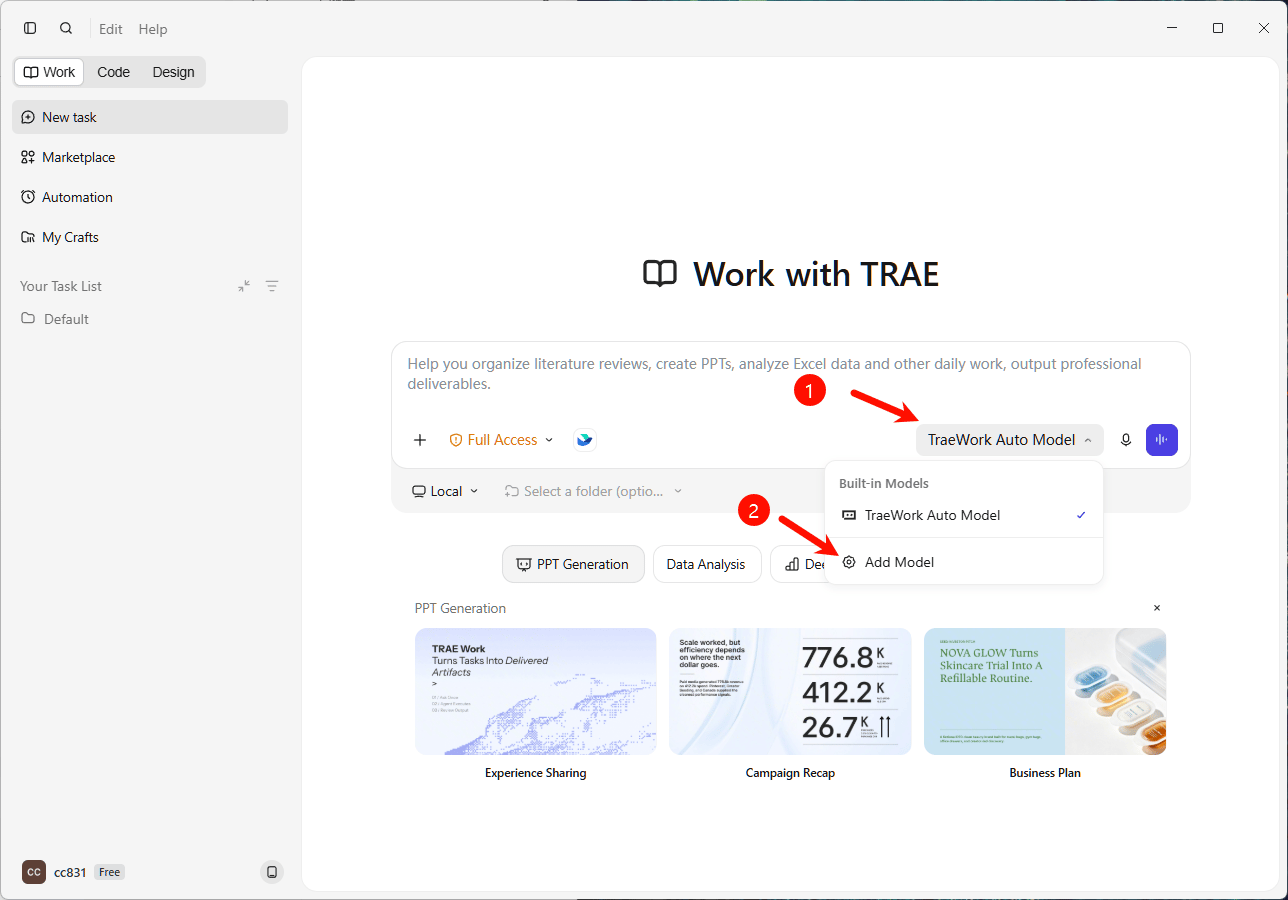
### Step 1: Open the model settings
In Trae Work, go to **Settings** > **Models**.
If the current page shows **Add Model**, click it to open the add-model dialog.
 ### Step 2: Choose `Custom Configuration`
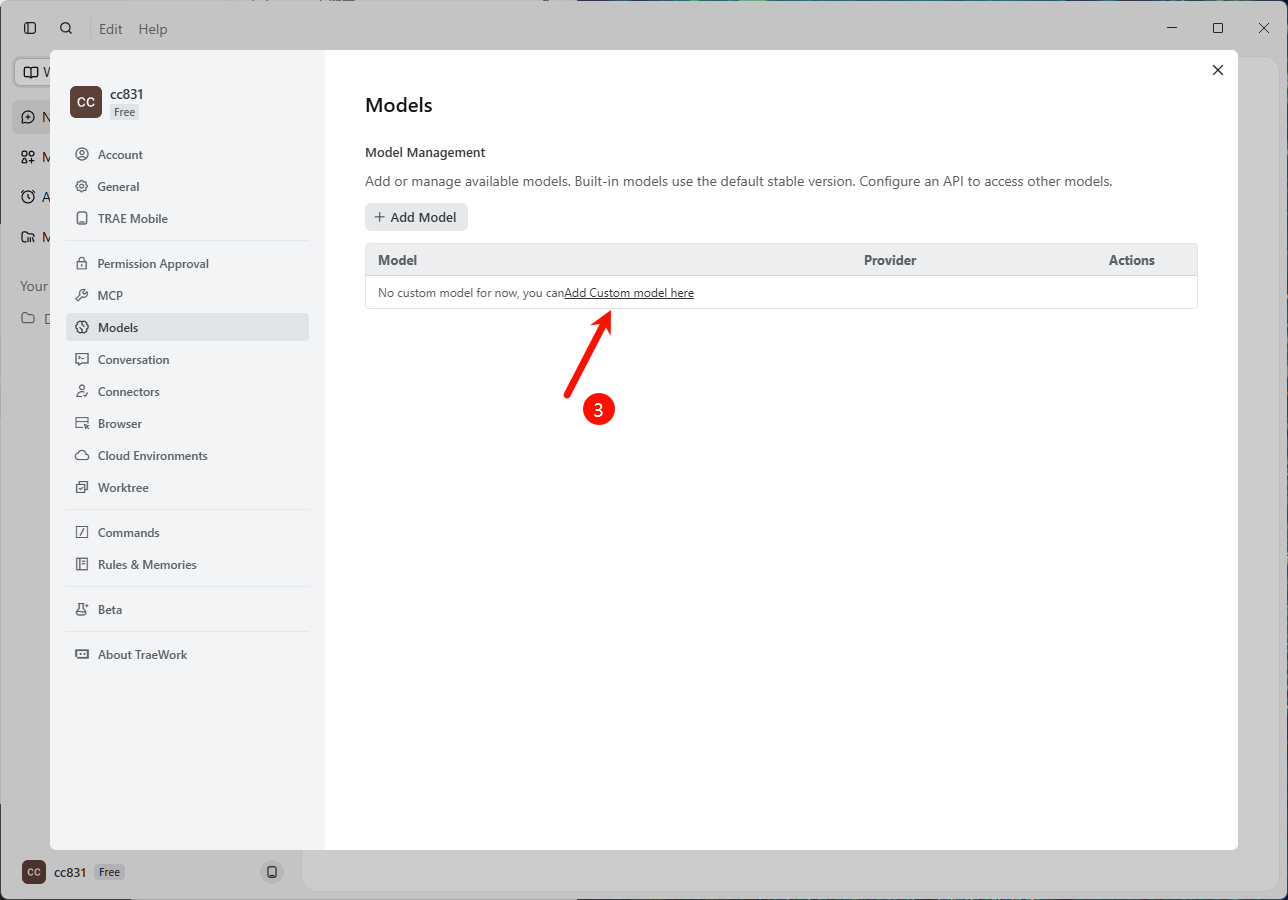
In the add-model dialog, switch from preset providers to **Custom Configuration**.
This allows Trae Work to call HaiRoute directly with the protocol, endpoint, and model ID you provide.
### Step 2: Choose `Custom Configuration`
In the add-model dialog, switch from preset providers to **Custom Configuration**.
This allows Trae Work to call HaiRoute directly with the protocol, endpoint, and model ID you provide.
 ### Step 3: Choose the API format
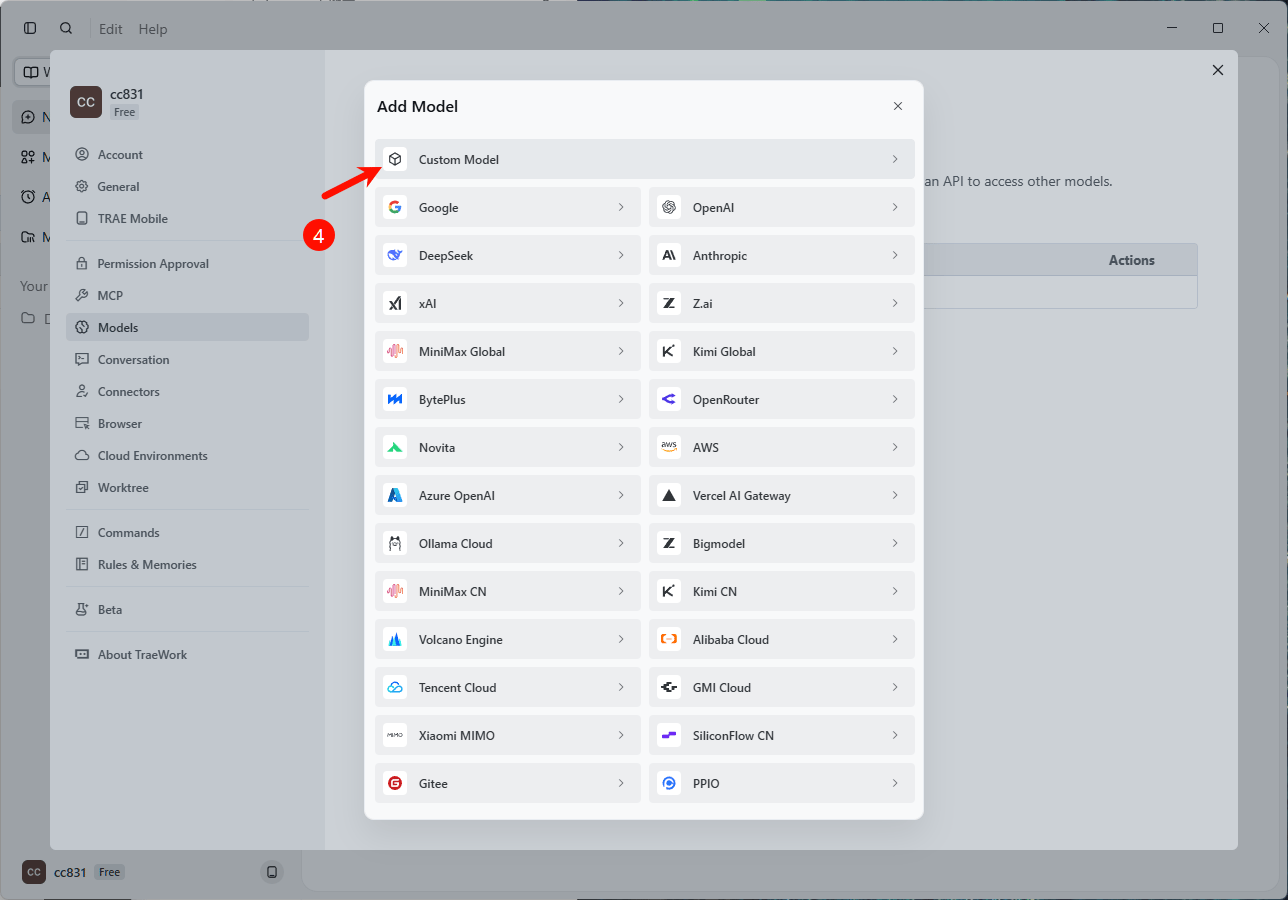
Select **OpenAI Chat Completions** as the API format.
HaiRoute provides an OpenAI-compatible chat endpoint at `POST /v1/chat/completions`, and this is the simplest path for most Trae Work integrations.
If you explicitly want the Claude / Anthropic path instead, you can choose **Anthropic Messages** here. In that case, the request URL later should be `https://api.hairoute.ai` rather than the OpenAI-style `/v1` address.
### Step 3: Choose the API format
Select **OpenAI Chat Completions** as the API format.
HaiRoute provides an OpenAI-compatible chat endpoint at `POST /v1/chat/completions`, and this is the simplest path for most Trae Work integrations.
If you explicitly want the Claude / Anthropic path instead, you can choose **Anthropic Messages** here. In that case, the request URL later should be `https://api.hairoute.ai` rather than the OpenAI-style `/v1` address.
 ### Step 4: Fill the endpoint, model ID, and API key
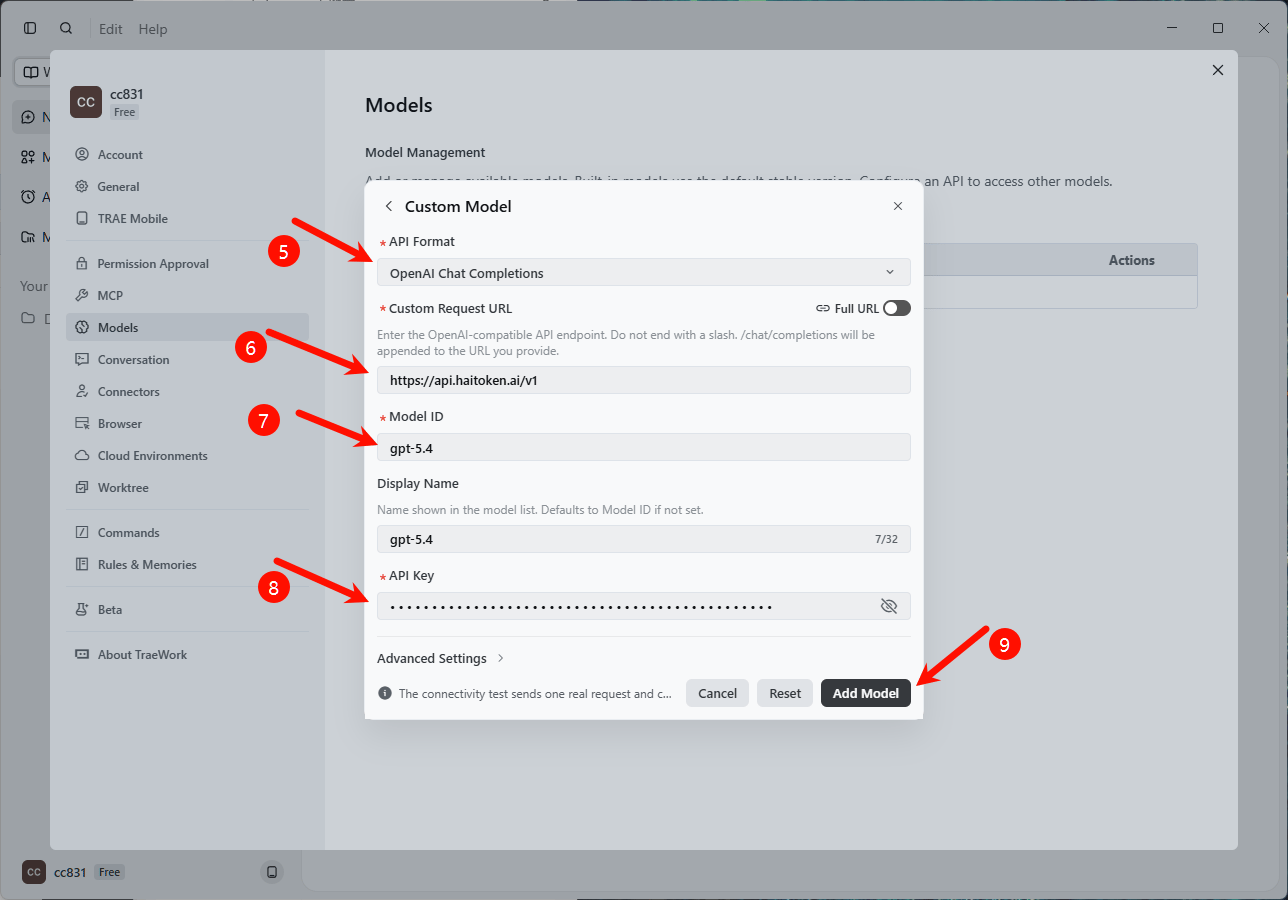
Use the following values:
| Field | Recommended value |
| ----------- | --------------------------------------------------------------------------------------------------------- |
| API format | Prefer `OpenAI Chat Completions`; choose `Anthropic Messages` if you explicitly want the Claude ecosystem |
| Model ID | A real HaiRoute model ID such as `gpt-5.4` |
| API Key | Your HaiRoute API key |
| Request URL | Use `https://api.hairoute.ai/v1` for `OpenAI`; use `https://api.hairoute.ai` for `Anthropic` |
If the UI provides a **Full URL** switch, it is safer to keep it off first and enter the base address `https://api.hairoute.ai/v1`.
If **Full URL** is already enabled, then use the full endpoint `https://api.hairoute.ai/v1/chat/completions` instead.
If you chose **Anthropic Messages**, keep the base-address style and enter `https://api.hairoute.ai`, then let the client call `/v1/messages`.
If the dialog also exposes optional fields, adjust them according to the real model capability:
* Multimodal: enable only if the model supports image input
* Display name: for example `HaiRoute GPT-5.4`
* Context window and max output: keep the defaults if you are unsure
### Step 4: Fill the endpoint, model ID, and API key
Use the following values:
| Field | Recommended value |
| ----------- | --------------------------------------------------------------------------------------------------------- |
| API format | Prefer `OpenAI Chat Completions`; choose `Anthropic Messages` if you explicitly want the Claude ecosystem |
| Model ID | A real HaiRoute model ID such as `gpt-5.4` |
| API Key | Your HaiRoute API key |
| Request URL | Use `https://api.hairoute.ai/v1` for `OpenAI`; use `https://api.hairoute.ai` for `Anthropic` |
If the UI provides a **Full URL** switch, it is safer to keep it off first and enter the base address `https://api.hairoute.ai/v1`.
If **Full URL** is already enabled, then use the full endpoint `https://api.hairoute.ai/v1/chat/completions` instead.
If you chose **Anthropic Messages**, keep the base-address style and enter `https://api.hairoute.ai`, then let the client call `/v1/messages`.
If the dialog also exposes optional fields, adjust them according to the real model capability:
* Multimodal: enable only if the model supports image input
* Display name: for example `HaiRoute GPT-5.4`
* Context window and max output: keep the defaults if you are unsure
 ### Step 5: Add the model and enable it
Click **Add Model**.
If Trae Work reports a successful connection, the model should appear in the model list. Make sure it is enabled and switch to it in the chat UI.
## Verification
1. Open the Trae Work chat panel.
2. Switch to the HaiRoute-backed model.
3. Send a simple test prompt such as `hi` or `Explain what this file does`.
4. If the reply returns normally, the integration is working.
## Notes
If you are using base-address mode in Trae Work, enter `https://api.hairoute.ai/v1`. If you are using Full URL mode, enter `https://api.hairoute.ai/v1/chat/completions`. Do not mix the two modes.
| Item | Value |
| ----------------------------- | -------------------------------------------- |
| Trae Work API format | `OpenAI Chat Completions` |
| Actual HaiRoute endpoint | `POST /v1/chat/completions` |
| Anthropic-compatible endpoint | `POST /v1/messages` |
| Auth method | `Authorization: Bearer YOUR_API_KEY` |
| Model source | The model ID you manually added in Trae Work |
The value you should enter here is the **model ID** from the HaiRoute homepage or model list, not the display name. Copy a value such as `gpt-5.4` directly to avoid `model not found`.
Trae Work's official model documentation states that custom configuration supports both `OpenAI Chat Completions` and `Anthropic Messages`. For HaiRoute, the OpenAI path is usually the most direct. [Official model docs](https://docs.trae.ai/ide/models)
## FAQ
| Question | Fix |
| ------------------------------------------------------ | ------------------------------------------------------------------------------------------------------------------------------------------------------------------------------------------------------------------------------------------------------ |
| The request URL is reported as invalid | First confirm which mode you are using: if **Full URL** is off, enter `https://api.hairoute.ai/v1`; if **Full URL** is on, enter `https://api.hairoute.ai/v1/chat/completions`. The most common mistake is mixing base-address mode and full-URL mode. |
| I want to switch to the Claude / Anthropic mode | Change the API format to `Anthropic Messages` and change the request URL to `https://api.hairoute.ai`. Do not keep using the OpenAI-style `https://api.hairoute.ai/v1` address. |
| `401` or authentication failed | Make sure the API key is valid. HaiRoute uses OpenAI-compatible Bearer authentication, which means `Authorization: Bearer YOUR_API_KEY`. |
| `model not found` | Make sure the model ID in Trae Work exactly matches a model ID returned by HaiRoute. |
| The model was added but does not appear in the chat UI | Go back to the model management page and confirm the model was added successfully and is enabled. If it still does not show up, reopen the model list or restart Trae Work once and check again. |
## Next
* See [Get API Key](/docs/en/quickstart/get-api-key)
* See [OpenAI format API](/docs/en/api-reference/chat/openai-format)
* See [List models](/docs/en/api-reference/models/list-models)
### Step 5: Add the model and enable it
Click **Add Model**.
If Trae Work reports a successful connection, the model should appear in the model list. Make sure it is enabled and switch to it in the chat UI.
## Verification
1. Open the Trae Work chat panel.
2. Switch to the HaiRoute-backed model.
3. Send a simple test prompt such as `hi` or `Explain what this file does`.
4. If the reply returns normally, the integration is working.
## Notes
If you are using base-address mode in Trae Work, enter `https://api.hairoute.ai/v1`. If you are using Full URL mode, enter `https://api.hairoute.ai/v1/chat/completions`. Do not mix the two modes.
| Item | Value |
| ----------------------------- | -------------------------------------------- |
| Trae Work API format | `OpenAI Chat Completions` |
| Actual HaiRoute endpoint | `POST /v1/chat/completions` |
| Anthropic-compatible endpoint | `POST /v1/messages` |
| Auth method | `Authorization: Bearer YOUR_API_KEY` |
| Model source | The model ID you manually added in Trae Work |
The value you should enter here is the **model ID** from the HaiRoute homepage or model list, not the display name. Copy a value such as `gpt-5.4` directly to avoid `model not found`.
Trae Work's official model documentation states that custom configuration supports both `OpenAI Chat Completions` and `Anthropic Messages`. For HaiRoute, the OpenAI path is usually the most direct. [Official model docs](https://docs.trae.ai/ide/models)
## FAQ
| Question | Fix |
| ------------------------------------------------------ | ------------------------------------------------------------------------------------------------------------------------------------------------------------------------------------------------------------------------------------------------------ |
| The request URL is reported as invalid | First confirm which mode you are using: if **Full URL** is off, enter `https://api.hairoute.ai/v1`; if **Full URL** is on, enter `https://api.hairoute.ai/v1/chat/completions`. The most common mistake is mixing base-address mode and full-URL mode. |
| I want to switch to the Claude / Anthropic mode | Change the API format to `Anthropic Messages` and change the request URL to `https://api.hairoute.ai`. Do not keep using the OpenAI-style `https://api.hairoute.ai/v1` address. |
| `401` or authentication failed | Make sure the API key is valid. HaiRoute uses OpenAI-compatible Bearer authentication, which means `Authorization: Bearer YOUR_API_KEY`. |
| `model not found` | Make sure the model ID in Trae Work exactly matches a model ID returned by HaiRoute. |
| The model was added but does not appear in the chat UI | Go back to the model management page and confirm the model was added successfully and is enabled. If it still does not show up, reopen the model list or restart Trae Work once and check again. |
## Next
* See [Get API Key](/docs/en/quickstart/get-api-key)
* See [OpenAI format API](/docs/en/api-reference/chat/openai-format)
* See [List models](/docs/en/api-reference/models/list-models)