

Protocol Note
VS Code Custom Endpoints support the OpenAI Chat Completions and OpenAI Responses API types. HaiRoute supports both: usehttps://api.hairoute.ai/v1/chat/completions for Chat Completions, or https://api.hairoute.ai/v1/responses for Responses.
What you need
- VS Code with GitHub Copilot enabled
- A HaiRoute API key
- At least one available model ID, such as
gpt-5.4 - A full HaiRoute request URL that matches the selected API type
Setup Steps
Step 1: Open language model management
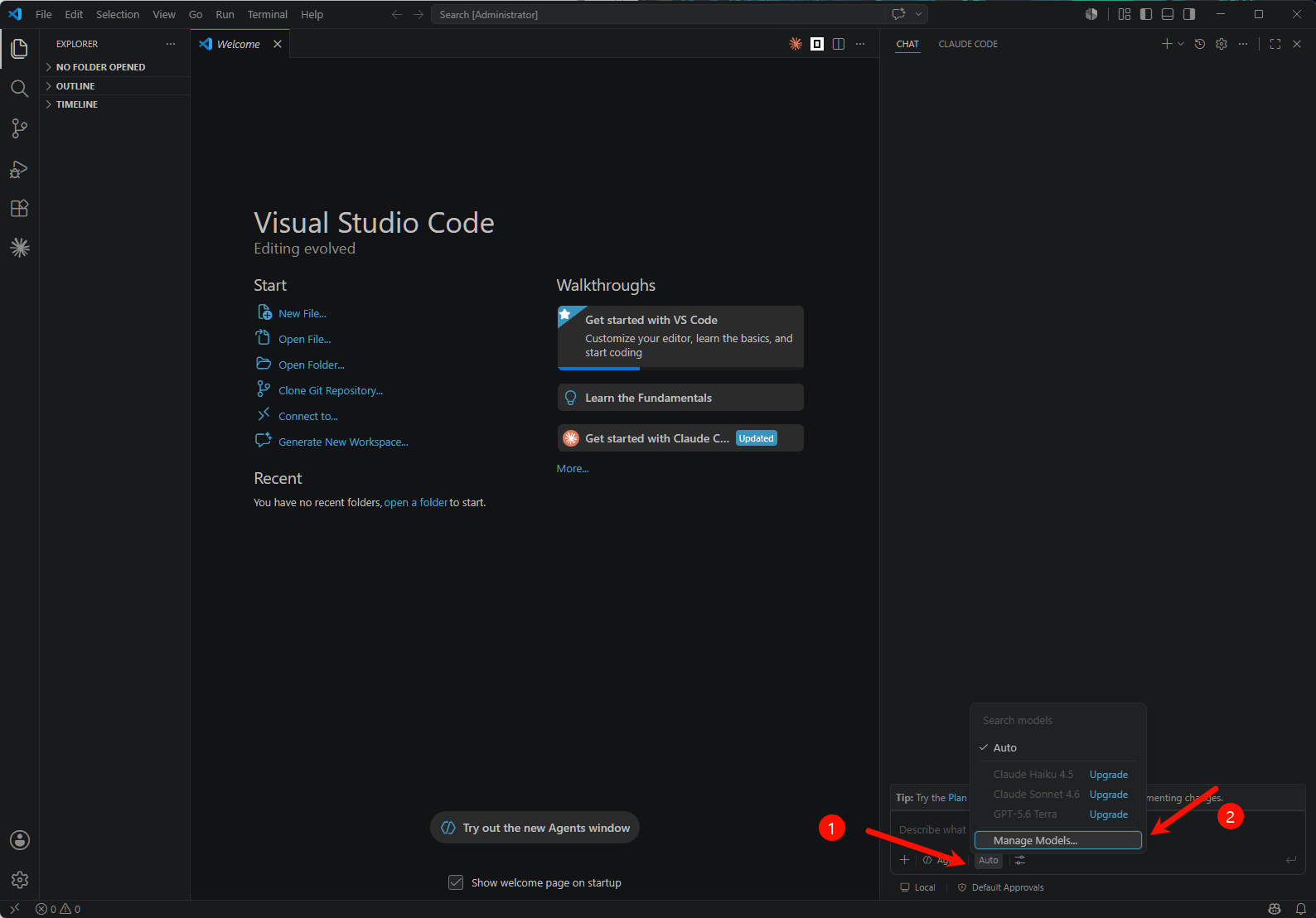
In the VS Code Chat panel, click the model picker next to the input box (shown as Auto by default) and select “Manage Language Models” from the dropdown. You can also open the Command Palette (Ctrl+Shift+P / Cmd+Shift+P) and run Chat: Manage Language Models.
Step 2: Add a Custom Endpoint model
On the Language Models management page, click “Add Model” and choose Custom Endpoint from the dropdown.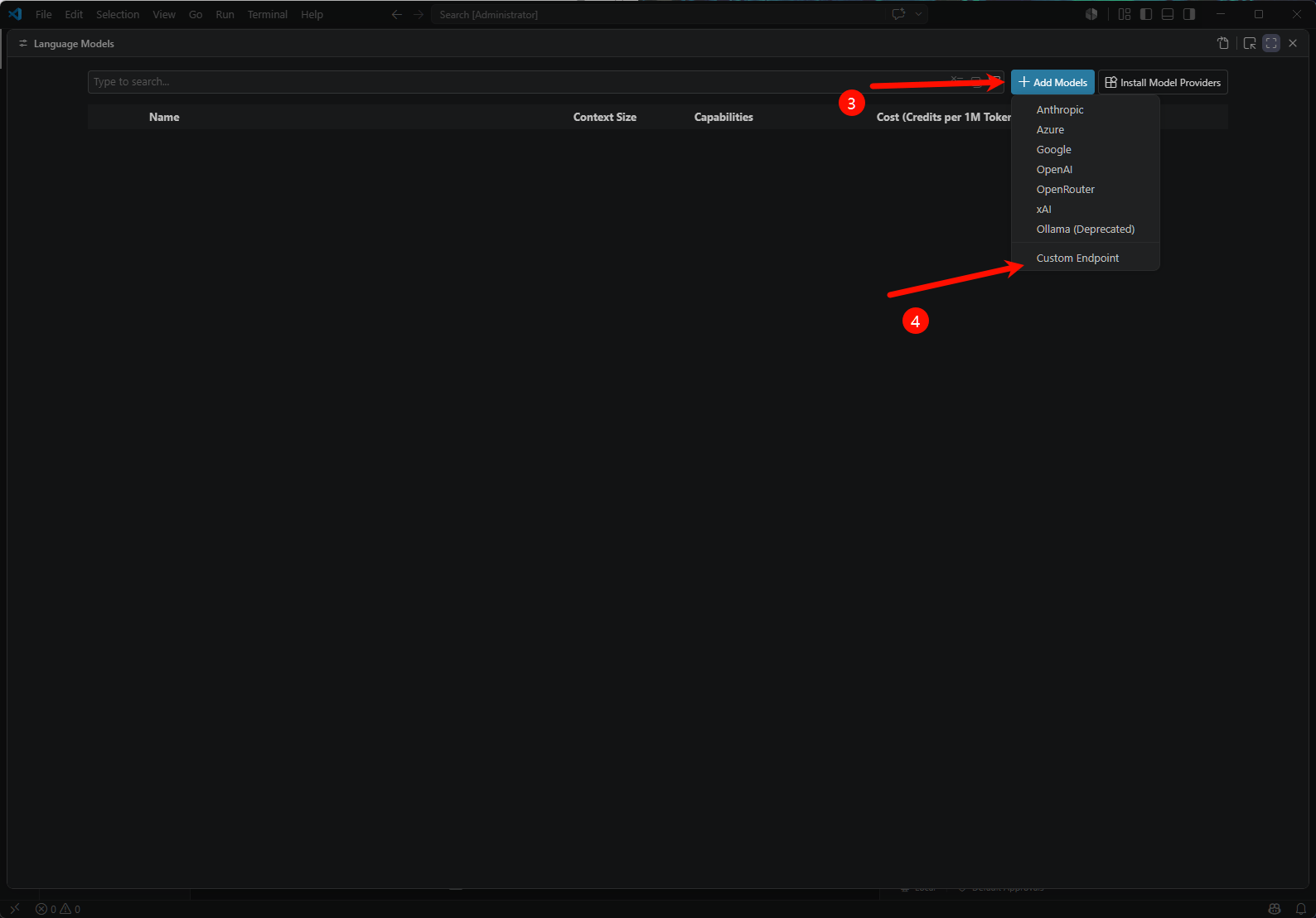
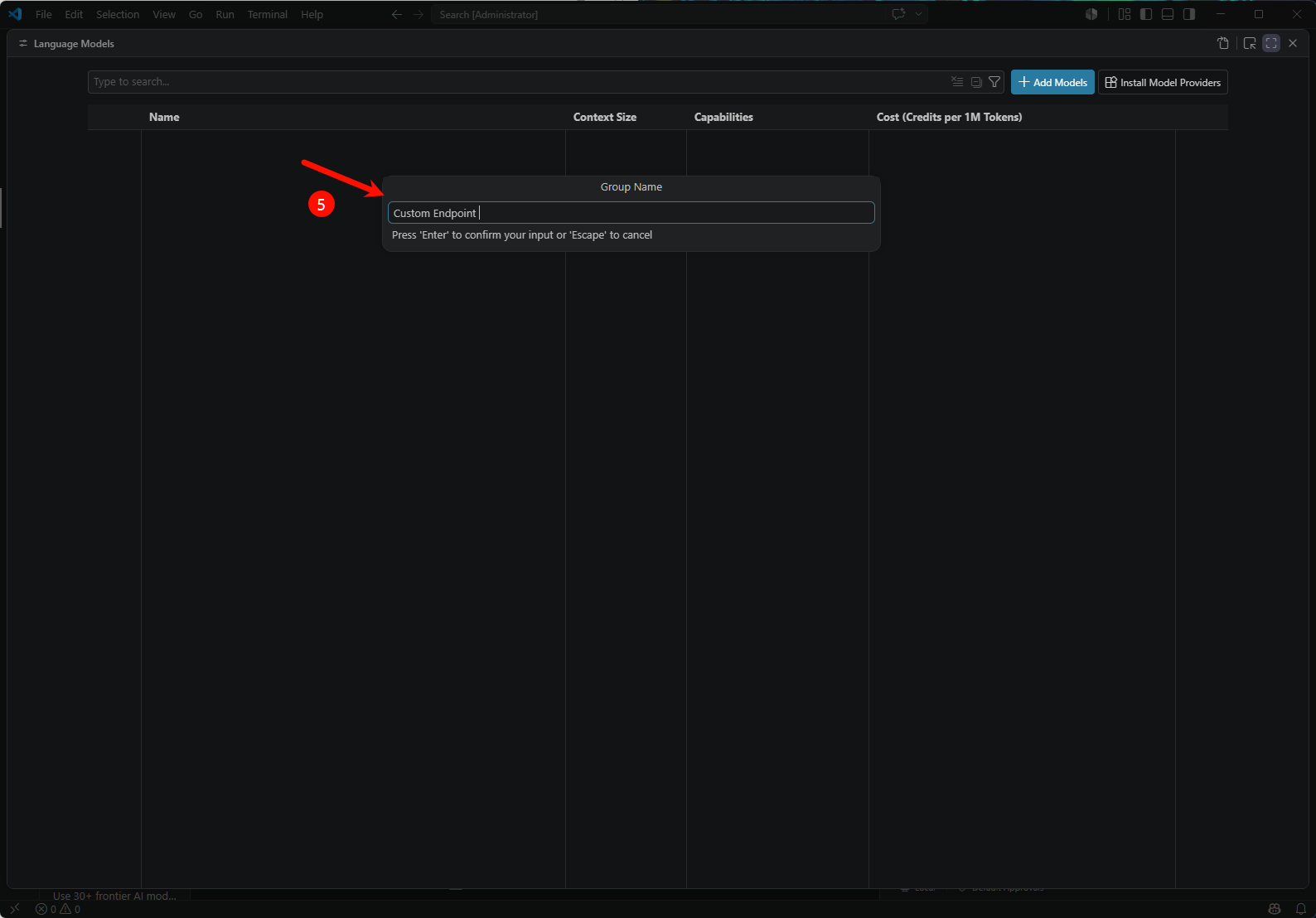
Custom Endpoint) and press Enter.
Step 3: Enter your HaiRoute API key
In the API Key dialog, paste your HaiRoute API key and press Enter.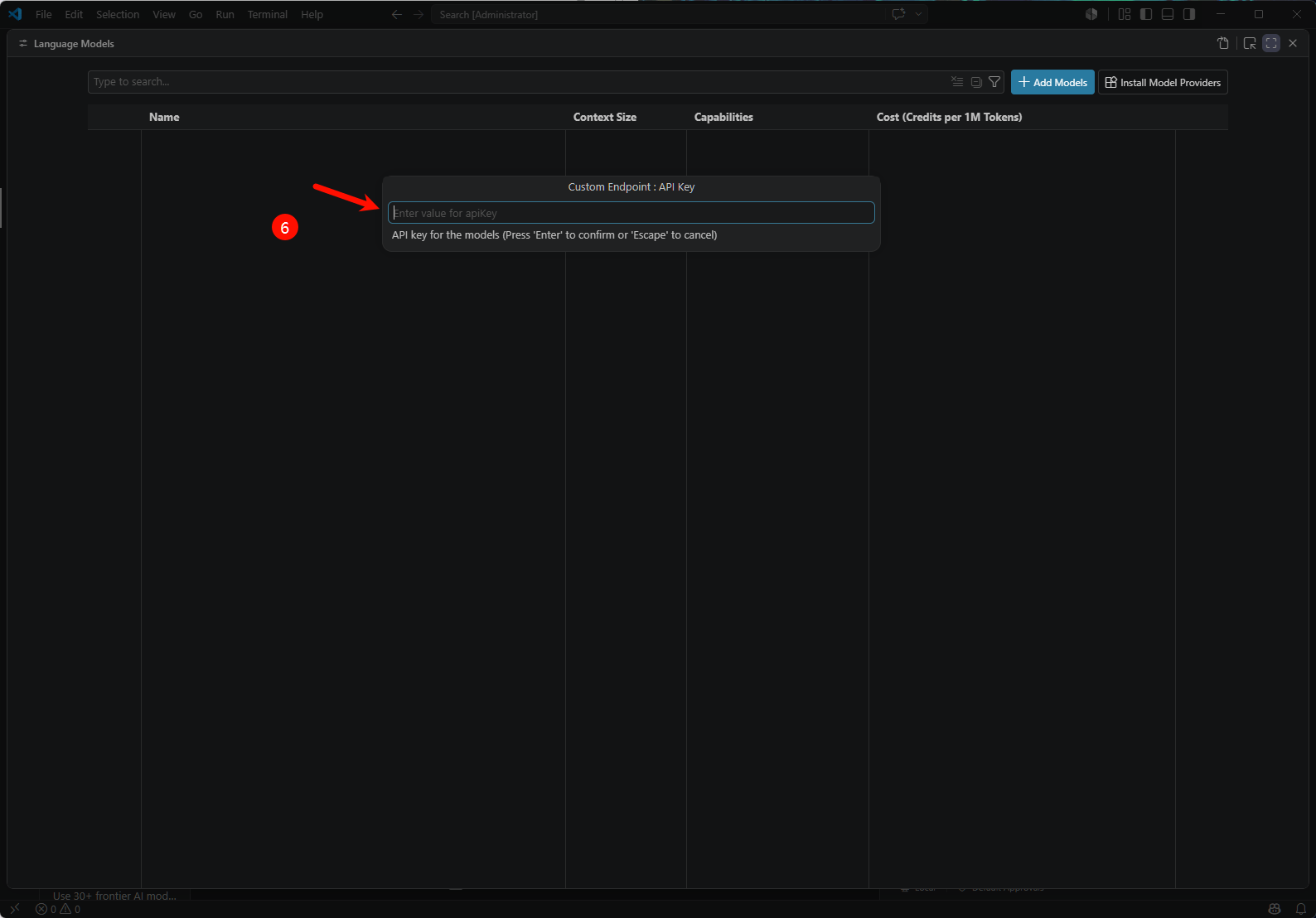
Step 4: Choose the API type
In the API Type dialog, select Chat Completions for the OpenAI Chat Completions protocol, or select Responses for the OpenAI Responses protocol. Both API types are supported by HaiRoute.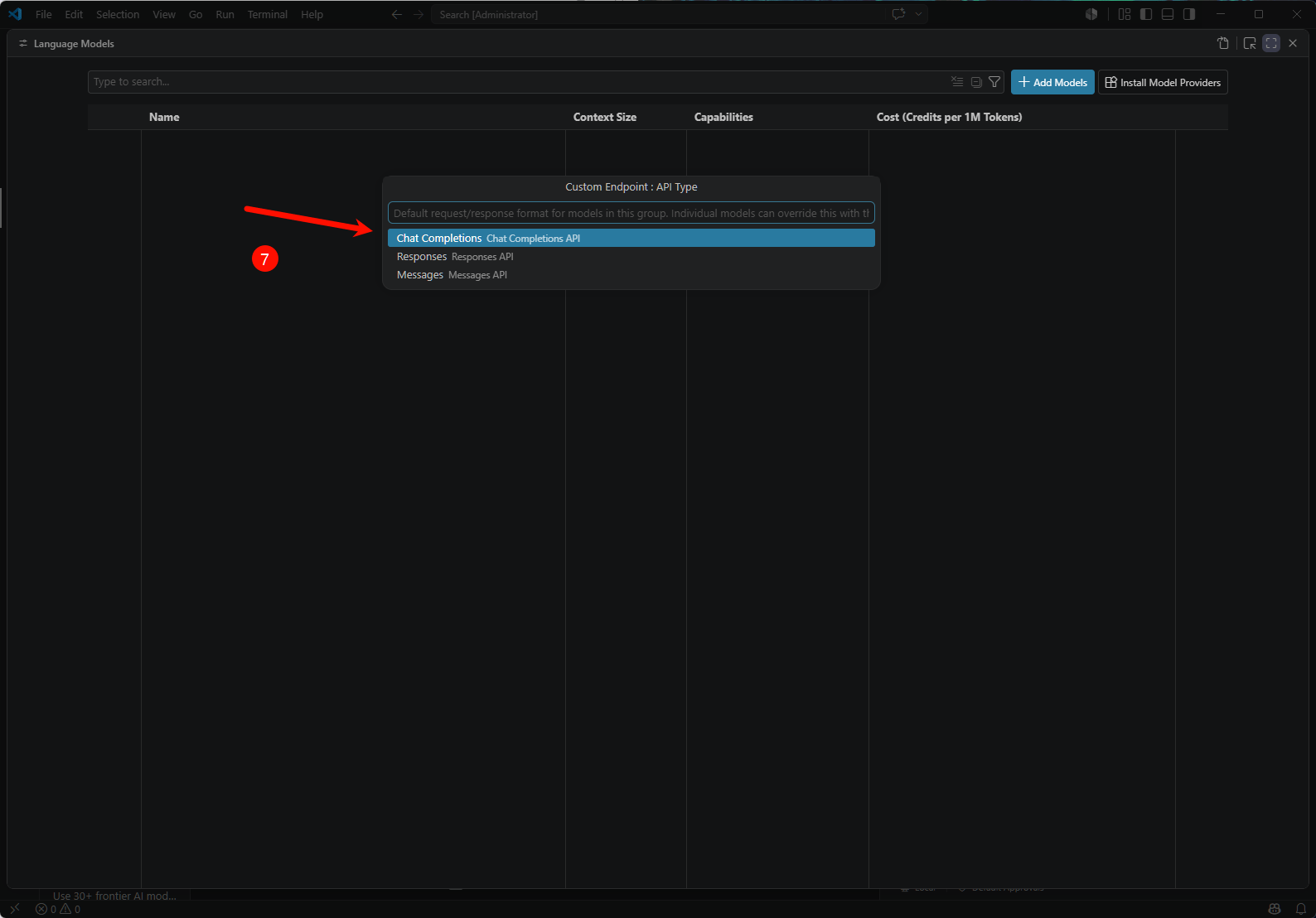
Step 5: Edit the config file to set the model ID and URL
After the wizard completes, VS Code automatically opens thechatLanguageModels.json config file. Find the Custom Endpoint entry you just created and fill in the following fields in the models array:
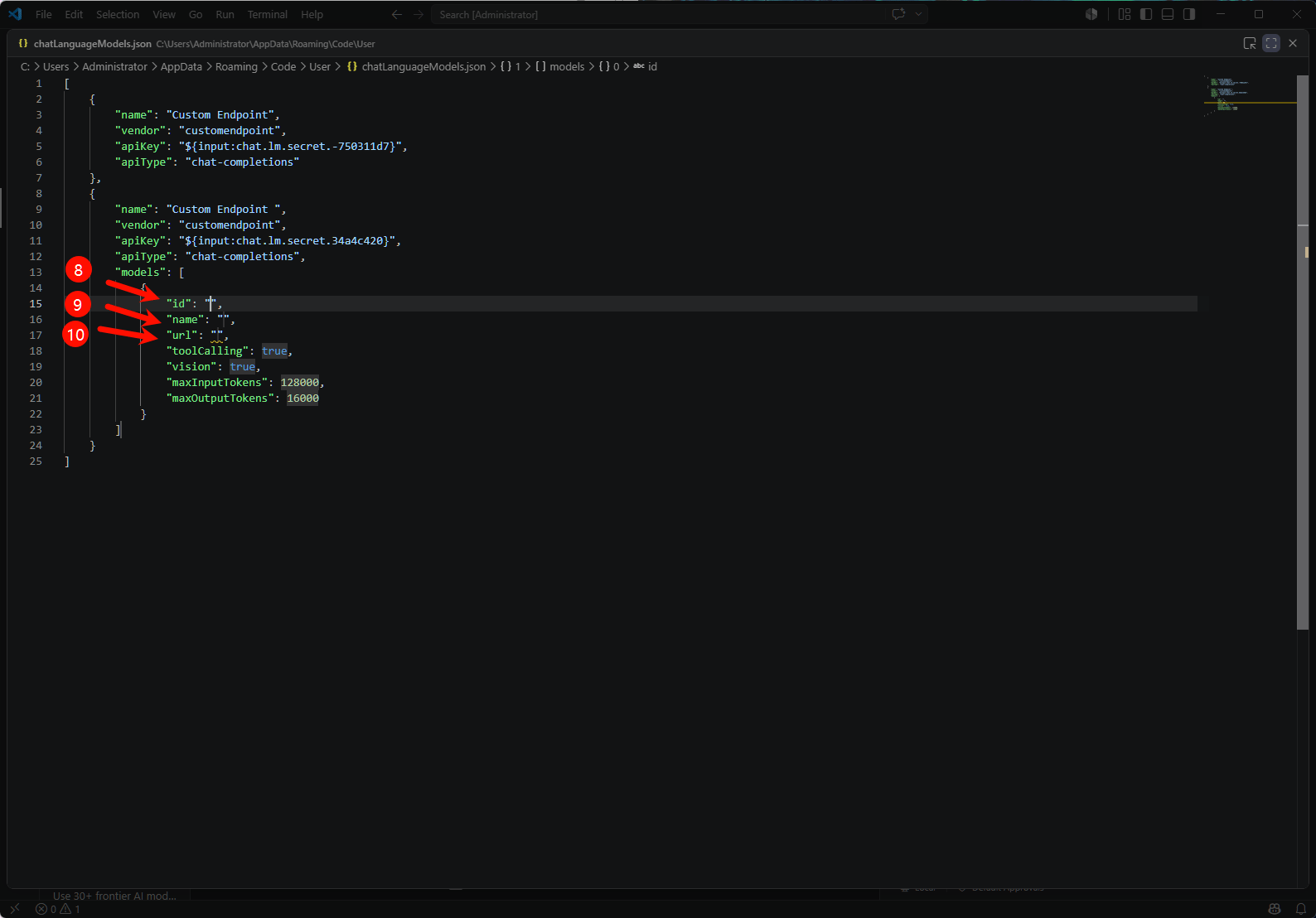
Save the file, return to the Chat panel, and the newly added HaiRoute model will be available in the model picker.
Verification
- Open the VS Code Chat panel.
- Select the HaiRoute-backed model from the picker.
- Send a simple prompt such as
hello. - If the response returns normally, the integration works.
Notes
How to switch models
Open the chat model picker in VS Code and select another HaiRoute model from the list. If the model you want isn’t listed, go back to Manage Language Models and add it following Step 2–5, or append another model object to themodels array of an existing Custom Endpoint in chatLanguageModels.json.
FAQ
Next
- See Get API Key
- See OpenAI format API
- See List models